Since rebuilding my machine with a new motherboard and processor, I’ve gotten a few crashes in the middle of the night. I’ve come downstairs to a rebooted PC with an error message indicating the dreaded Blue Screen of Death has visited. So I decided to figure out what’s causing it, and maybe find a fix.
When a bluescreen happens, Windows will take a snapshot of what is in memory at the time of the crash and store them for analyzing later. “Mini” crash dumps are stored in c:windowsminidump and are trimmed down (for space reasons) versions of the full crash dumps. There’s a great tool called Windows Debugger that can be used to take a peek into these dump files to decipher what may be causing the problem.
First I downloaded the Windows Debugging Tools so that I could get the WinDbg (Windows Debugger).
After installing the tools, start up WinDbg and you’ll see a very plain looking interface that is essentially a console with tons of menu options/commands.

The next step is to open one of those crash dump files. So go to File -> Open Crash Dump and select one of the .dmp files. It’ll chug away for a few seconds as it opens, and then you’ll be presented with some messages that include:
***** Kernel symbols are WRONG. Please fix symbols to do analysis.
Symbols are files that contain debugging information for your system files. They are platform and version dependent – meaning symbol files for a 32-bit Windows XP machine won’t help figuring out a 64-bit Windows 7 problem as is the case here. Luckily, WinDbg will download the appropriate versions of symbols once you simply tell it where to get them and where to put them. Select File -> Symbol File Path and enter the following into the window to save the symbols to a path on your C::
SRV*c:debugsymbols*http://msdl.microsoft.com/download/symbols
Check the Reload box before closing so that the symbols will be downloaded right away:

When you click OK, the status bar on the main console will read BUSY as the necessary symbols are downloaded. Then the cursor will sit and blink, waiting for you to tell it what to do.
Now just type in:
!analyze -v
and you’ll be presented with lots of very technical technical text. In my case, I scanned through and saw a couple important bits of information:
PAGE_FAULT_IN_NONPAGED_AREA (50)
DEFAULT_BUCKET_ID: VISTA_DRIVER_FAULT
BUGCHECK_STR: 0x50
PROCESS_NAME: Robocopy.exe
FAULTING_IP:
nt!MmCopyToCachedPage+215
IMAGE_NAME: memory_corruption
So it sounds like it’s a bad memory pointer resulting in a fun access violation, happening in a kernel function MmCopyToCachedPage. And it doesn’t seem to have anything to do with power management, instead it was occurring during one of my nighly backups that uses Robocopy to pull files off of the network.
Now, what to do about it? I tossed MmCopyToCachedPage into Bing, and the very first hit was for someone running a similar processor on the exact same motherboard. (For the record, Google’s search results didn’t appear to be nearly as useful). Reading through the thread, a mentioned fix was to change a BIOS setting to accomodate the processor better (CPU Margin Enhancement, whatever the heck that is). Tonight we’ll see if this has any impact on the system crash, I’ll be crossing my fingers.
So there you have it, using WinDbg to get a look into what part of your machine is blowing up. Thanks for reading.
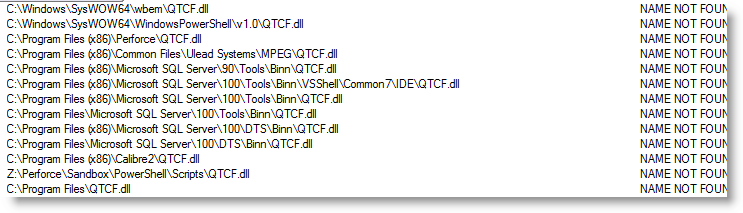 That looked curious – the app is presumably calling LoadLibrary on QTCF.dll and Windows is doing its best to locate it and finally gives up.

 The Johnson Blog