The Johnson Blog

Ramblings of a geek with a few hobbies…

Tag: software

  • Internet Explorer 10 Skipping Keystrokes

    I’ve been running Windows 8 for a while now on my laptop, and ran into a very frustrating problem with Internet Explorer 10. When typing on a webpage, I often found it skipping keystrokes. It seemed to get progressively worse over time, to the point where I found myself having to hit a key 3 times before it would register.

    So tonight I set out to figure out what exactly was going on, or how to fix it.

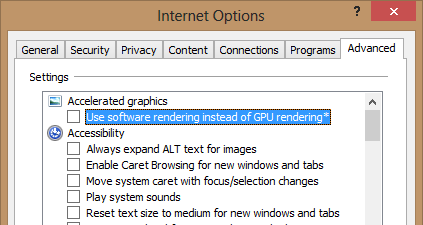
    Skimming through the IE settings, I found an option for using software rendering instead of GPU rendering.

    I had completely forgotten that IE10 uses the GPU.  Off I went to NVidia’s website, downloaded new drivers, and voila! no more typing problem!

    If you’re unable to find new drivers and are experiencing missed keystrokes in IE, you may want to check that checkbox in Internet Options – it may just help you out.


  • How I Use Lightroom: Collect and Share

    This post is part of an ongoing series related to how I use Adobe Photoshop Lightroom.  If you haven’t read them yet, check out How I use Lightroom: Getting Photos In, How I use Lightroom: Taking Out the Trash, and How I use Lightroom: Getting Photos Out.

    Collections, Quick Collections and Smart Collections

    In the first post in this series I discussed importing your photos into Lightroom and explained how I have Lightroom configured to import into a nicely organized, folder structure based on the import date.  So you’d think I’d use this all the time, right?

    Not as much as you may think.   And the reason is becuase the primary organizational unit in Lightroom is the Collection.

    (more…)

  • How I Use Lightroom: Getting Photos Out

    How I Use Lightroom: Getting Photos Out

    This post is part of an ongoing series related to how I use Adobe Photoshop Lightroom.  If you haven’t read them yet, check out How I use Lightroom: Getting Photos In and How I use Lightroom: Taking Out the Trash.

    First Some Background

    One of the first hurdles users new to Lightroom run into is how to get to the images they have edited.  It’s common to think I imported them to the My Pictures folder, so I’ll just use Windows Explorer to grab a copy.

    Wrong.

    (more…)

  • How I Use Lightroom: Taking Out the Trash

    This post is part of an ongoing series related to how I use Adobe Photoshop Lightroom.  If you haven’t read it yet, check out How I use Lightroom: Getting Photos In

    In the previous post I described how I use the Import window.  As I mentioned, I don’t exclude any photos at that stage.  I bring everything in and then quickly make a pass where I figure out which need to be deleted.

    (more…)

  • How I Use Lightroom: Getting Photos In

    Adobe Photoshop Lightroom is an excellent piece of software I’ve recommended to many of my friends who have been bitten by the photography bug.  It catalogs and organizes all of my photos, allows me to quickly and efficiently edit them, and assists in pushing the end results for others to see. While on the surface it is targeted to professionals, I’m no professional and wouldn’t enjoy photography nearly as much without it.

    Because it is so configurable, it is often very helpful to get a look at how others use its many features.  So that’s what I’m going to do with this series of posts titled How I Use Lightroom.  I won’t go to mind-numbing depth into every feature it has to offer, but instead will show you what I think is a very approachable and practical method for getting your money’s worth out of it.

    So let’s get started with the first thing you need to do with it – get photos INTO lightroom.

    (more…)

  • Microsoft Office 2010 and Visual Studio 2008

    If you use Visual Studio 2008 and install Microsoft Office 2010, it looks like there’s a very good chance your Visual Studio Web Designer will be clobbered. The symptom is when you go to visually edit a web page (html, aspx, etc) in Visual Studio, it will appear to completely lock up. Actually, I think what is happening is a message box is popping up, UNDER Visual Studio so you cannot click it or do anything but End Task to close Visual Studio.

    Some searching around quickly came up with a few things to try.

    You need to run “C:Program Files (x86)Common Filesmicrosoft sharedOFFICE12Office Setup ControllerSetup.exe” and select Repair (drop the “(x86)” portion if you’re running 32-bit).

    On one of my machines, this was sufficient to repair the problem and Visual Studio went back to normal. However, on another computer I had to completely uninstall that software by selecting Uninstall instead of Repair. When that is done I then ran the Web Designer Core setup from the Visual Studio CD located at WCUWebDesignerCoreWebDesignerCore.exe. Be aware that if you were running VS Service Pack 1, you’ll want to reapply it after that setup completes.

    One the topic of the Office 2010 install, I must say that my experience has been dismal. In addition to this problem of breaking Visual Studio 2008, on one of my machines I had to manually uninstall Office 2007 because the new 64-bit setup detected that the old version wasn’t copletely gone after uninstall. As you can guess, this was a pretty lengthy process, following a document from Microsoft led to about 10 minutes of hunting down and deleting various directories, files, and registry keys. Ouch.

    Office 2010 is a nice upgrade, but Microsoft sure seemed to have botched the install.
  • Trillian Astra

    I’ve been a Trillian user for quite some time, having used one of the first versions in beta form. Sadly, the current version has been showing its age and late last year I was forced to stop using it because it had become unreliable on the Windows Live Messenger platform, which I use for work.  I felt I had held out long enough and the next version was nowhere to be found (well, it has been under development seemingly forever), so I gave in and went back to using multiple chat clients.

    Fast forward to last week when it was brought to my attention that the next version of Trillian, called Astra, was available in a limited beta.  I quickly signed up and have been very pleased since.

    Kudos to Cerulean Studios for all of their hard work, it is very clear they have put alot of thought into this “chat client”.  I won’t go into the laundry list of features, but will mention a few that I really like:

    • Settings are tied to a single Trillian account, so I don’t have to redefine connections between the 3 computers I use. 
    • iPhone support coming!
    • Twitter integration – tweets are listed in the main window where contacts are.
    • Facebook integration – near-immediate updates without having to login to the website.
    • A very well designed logging and log searching system.  I rely heavily on this for work, and being able to search by date in a nice UI is great.  AIM, Live, and past versions of Trillian have been lacking here.

    I mention that it seems very well thought out, here’s an example.  When alerts of some kind happen, there’s a small unobtrusive “popup” window that appears for a few moments and then goes away.  Yeah, nothing new there.  BUT I have noticed that birthday alerts from Facebook don’t just go away – you have to close them yourself.  There’s a decent chance that if it just stayed visible for just a few seconds, you’d miss it completely.  Good design, I like it.

    I used the beta all of 2 days before deciding to purchase.  Thanks for bringing my chat client back, Cerulean!

    I have 4 beta invites remaining, let me know if you want to give it a try.

  • Favorite Software?

    Leaving development tools aside (ahem, Visual Studio, ahem), what are your favorite software titles?  You know, the ones you use daily, are truly useful, you couldn’t live without, and are just plain fun.  Here are mine, in no particular order:

    1. Microsoft OneNote 2007 – This is such a little known piece of software, but one that organizes almost everything I do throughout the day.  I’ve taken a few recommendations from some sites here and there and implemented my own Getting Things Done (great book too) system using OneNote.  If you find yourself scribbling down things on paper or typing things up in random text files that are strewn all over the place, you should give OneNote a try.

      I’ve got two notebooks setup, one for work and one for everything else.  They both have pretty much the same structure/sections: Today; Current Month; Active Projects; and Archive.  Each of those contains pages with information tagged with customized OneNote tags (Processing, Project, Follow-up, etc).

    2. Adobe Photoshop Lightroom 2I’ve mentioned it here before, I know, but it’s great software that takes care of all things photos.
    3. TrillianI’ve been using this multi-service chat client for many years now.  It works and is always running on my machine.
    4. TrueCryptTransparent and on-the-fly encryption.  What’s not to love.  I use it in conjunction with the next entry.
    5. KeePass – A couple months ago I got sick and tired of resetting my passwords on a slew of online sites.  So I found this great utility.  I’ve always avoided using password keepers in the past, but finally gave in.  It takes security serious, and I store its data file in a TrueCrypt volume.
    6. Snaptune One – They appear to be out of business now, but I use it to record AM/FM radio with my RadioShark on Vista, since the original software doesn’t work on Vista.
    7. Windows Media Encoder – I don’t use this nearly as much as I used to, but recently got it back up and running.  I use it in combination with Windows Media Server to stream XM Radio and the RadioShark, so on the rare occasions I’m not here at my desk, I can still have audio choices.
    8. ISO Recorder – I make images of the mini-dvds from my camcorder.

    Anyone care to share their favorites?

  • Launchy

    A few days ago Brian introduced me to a little piece of software called Launchy that has quickly displaced my Windows Vista Start Menu Search. It is much quicker than searching with the Vista start menu and has a lot more features.

    It’s like a smart Run window (you know, the window that pops up when you click Start…Run in Windows), where you can do a bunch of different things with it depending on what plugins you have installed. For instance, if I want to quickly check the Weather:

    Alt+Space (to bring up Launchy), type “weather <tab> 62712” to go to weather.com for the 62712 zip code.

    Ever need to do some simple arithmetic, but are annoyed by having to open Calculator?

    Alt+Space (to bring up Launchy), just type in the math you want to do and the calculator plugin will give you the answer.

    It’s also great for opening programs, just start typing the application name. It’ll also learn what you launch most so it’ll take less and less typing as time goes on. It’s even pretty looking, and stays out of your way:

    Launchy

    It’s Open Source and available free of charge, check it out!  It was designed for XP and makes no mention on the website about Vista, but works as designed.

  • Visual Studio 2008

    Earlier this week I received a free copy of Microsoft’s Visual Studio 2008 by being an Action Pack subscriber and completing a short little web tutorial and quiz. I installed it last night and decided to get the Chef code/projects converted so I could start using it.

    The usual project conversion wizard popped up as soon as I opened the solution and prompted me to upgrade it to the new VS08 format (still targeting .NET 2.0 though).  When the wizard completed, however, I was getting a few compile errors in some of the WinForms designer files (.designer.cs).  It was easy enough to fix, the conversion just messed up namespaces during process, which surprised me a little bit.

    I haven’t spent much time actually developing in 08 yet, but now that I have Chef converted I’m going to stop using 2005 in favor of it.  I’ll report any cool new features I run into.
