The Johnson Blog

Ramblings of a geek with a few hobbies…

Tag: Tech

  • FogBugz on IIS 7.5

    If you are running FogBugz on IIS 7.5 (Windows 2008 R2), and trying to submit crash reports via scoutSubmit.asp, you may find that you are greeted with HTTP 404 errors.  I spent a few mintes tracking this down, and it’s due to the length of the querystring used in the request, and IIS 7.5’s request filtering.

    You’ll need to edit FogBugz’s web.config and add to the System.WebServer node the following:

    <security>
         <requestFiltering>
               <requestLimits maxQueryString="15360"/>
         </requestFiltering>
    </security>
    

    That will set the querystring length to 15KB, which should suffice.

  • My New USB 3.0 Drobo S

    A special “Thank You” goes out to Data Robotics for sponsoring the Daddy On Board Podcast (put on by Clayton Morris and Mike Quackenbush), which I watch and listen to regularly.  It’s a fun podcast put on by a couple of new fathers that discuss a wide range of baby and toddler-related topics.  Good stuff and worth a listen, check it out.

    Anyway, several weeks ago I tossed my name into a drawing they were putting on for a new Drobo, and won!

    For those unfamiliar, a Drobo is a small box that holds several hard drives and makes them function as one, larger drive.   More importantly, there is data protection built-in so that your data is safe even if a drive (or two, depending on configuration) dies.

    It arrived today, the brand-new edition of the Drobo S.  This new one has USB 3.0, Firewire, and eSATA and can hold up to 5 drives.   I don’t have any USB 3 ports here yet, so it’s currently connected to my desktop via the slower USB 2.  A USB 3 card should be arriving early next week 🙂

    Here’s the Drobo with 3 new 1TB drives (yes, I label my drives so I know how old they are):

    Setup was a piece of cake, and it fits perfectly in a small table next to my desk.  Here it is ready to start storing lots of data:

    I have it configured to be able to survive 2 drives failing, so that 3TB of raw storage really only gets me 1 TB of usable space.  But that’s fine, I’m paranoid about hard drives eating my data.

    Now that it’s here, I am moving 223 GB of home videos to it that were too large to fit in with my standard backup procedures.   Then I need to figure out where exactly this will fit in with all of my other data storage –  I’m pretty sure it will just hold backups, but which backups (I already have 2 RAID arrays here with further copying to external drives for off-site rotation) is the question.

  • Capitalizing First Letter of Every Word with Powershell 2

    I came across the need to captalize the first letter of every word (I needed this for names, including hyphenated names) with PowerShell, and learned that PowerShell 2 has a great feature that comes in handy here.

    I first tried using the PowerShell -replace operator but you can’t do function calls or anything complex in the replacement parameter.  So $name = $name -replace 'b(w)', '$1.ToUpper()' doesn’t work.

    If I were using C#, I would just use Regex.Replace, making use of a MatchEvaluator delegate (using lambda expression syntax): name = Regex.Replace(name, 'b(w)', m => m.Value.ToUpper());

    Thankfully, in PowerShell 2 you can now use an script block as a delegate. So my problem is solved with $name = [Regex]::Replace($name, 'b(w)', { param($m) $m.Value.ToUpper() });.

    If you’re unfamiliar with the MatchEvaluator, for each regular expression match encountered, the delegate function gets called and that function’s return value is the string used as the replacement. So in my example here, 'b(w)' matches the first letter of every word. That letter gets passed to my script block as a .NET Match object, whose Value is the matched letter. The returned uppercase version of the letter is put back into the original string. Done!

  • Favorite Software, 2010 Edition

    Almost 2 years ago I posted a little about my favorite software titles.  Tonight I thought it would be interesting to take a look at my current favorites and see how the list has changed.

    1. Microsoft OneNote is still on the list, albeit the new 2010 version.   This is still where I organize everything and take notes daily.
    2. Adobe Photoshop Lightroom also stayed on the list, new on version 3.  My favorite V3 features are the much improved noise reduction and lens correction profiles.
    3. Trillian gets used just about every hour of every day.  I’m currently using Trillian 5 Beta on the desktop and now enjoy their iPhone too.  Version 5 is promised to bring chat history syncronized across devices, I can’t wait for that.  This version also handles Twitter and Facebook much better than the prior, so it is slowly becoming my preferered desktop twitter/facebook viewer and publisher.
    4. Calibre is new to this list.  In 2008 I didn’t have a Kindle so I had no need for an eBook librarian.  While this tool could really use some commercial UI polish, nothing else like it exists.  I purchase alot of tech eBooks and download a few docs, and they all get stored in Calibre.  From there I can easily push them to the Kindle which is better than either paying Amazon for wireless document delivery or using Windows Explorer for the task.  I need to do a whole post on Calibre at some point, it’s a very versatile tool that any eBook Reader owner should know about.
    5. LastPass has supplanted the TrueCrypt/KeePass combination for storing passwords.  LastPass is FAR more convenient, with its functionality is anchored in its online service.  Using LastPass I have access to passwords from any one of my computers.  One by one I’m letting it generate strong passwords for me, ones I couldn’t remember if I tried.  And I dont’ need to – their browser plugins handle auto-logging me in, among other great conveniences like form filling.
    6. TrueCrypt gets used indirectly every day.  My automated backup sets get copied to a TrueCrypt encrypted drive every morning.

    So there you have it.  Most have stayed on the list with even better versions than before, and there are a couple newcomers that have become indispensible to me.

    Have you any favorites, internet?

  • iOS 4 Wi-fi and Exchange Syncing Problems

    Ever since upgrading to iOS 4 on my iPhone 3G and then on the new iPhone 4 I have been seeing problems connecting to my local Exchange server when I was on wifi.   Even with previous versions of the OS, the iPhone never seemed to do Push reliably on when on the same wifi network as the Exchange server.   The problems with iOS 4, however, seem more severe.  Even force-checking the email on wifi would result in the phone just sitting there “connecting..” but never actually working.

    Tonight I decided to take some time to look into it – and I think I have it fixed.  Maybe this will help some others with the same problems (and judging by various forums, there are plenty of you out there).

    The issue boiled down to a combination of iOS 4 being unable to resolve DNS names ending in .local and my local DNS configuration.   The mail server hostname I the phone was accessing wasn’t .local since it’s publicly accessible, but it did have a CNAME DNS record on my internal DNS server that aliased to the .local name of the server.   On a hunch I removed the CNAME and just made an A record point to the local ip address of the server, rebooted the phone, and voila!  My local Exchange mail works as it should!

    To to summarize – don’t have any .local names involved in the lookup of your mail server.    Change your DNS config if you can, and reboot the phone.

  • Microsoft Office 2010 and Visual Studio 2008

    If you use Visual Studio 2008 and install Microsoft Office 2010, it looks like there’s a very good chance your Visual Studio Web Designer will be clobbered. The symptom is when you go to visually edit a web page (html, aspx, etc) in Visual Studio, it will appear to completely lock up. Actually, I think what is happening is a message box is popping up, UNDER Visual Studio so you cannot click it or do anything but End Task to close Visual Studio.

    Some searching around quickly came up with a few things to try.

    You need to run “C:Program Files (x86)Common Filesmicrosoft sharedOFFICE12Office Setup ControllerSetup.exe” and select Repair (drop the “(x86)” portion if you’re running 32-bit).

    On one of my machines, this was sufficient to repair the problem and Visual Studio went back to normal. However, on another computer I had to completely uninstall that software by selecting Uninstall instead of Repair. When that is done I then ran the Web Designer Core setup from the Visual Studio CD located at WCUWebDesignerCoreWebDesignerCore.exe. Be aware that if you were running VS Service Pack 1, you’ll want to reapply it after that setup completes.

    One the topic of the Office 2010 install, I must say that my experience has been dismal. In addition to this problem of breaking Visual Studio 2008, on one of my machines I had to manually uninstall Office 2007 because the new 64-bit setup detected that the old version wasn’t copletely gone after uninstall. As you can guess, this was a pretty lengthy process, following a document from Microsoft led to about 10 minutes of hunting down and deleting various directories, files, and registry keys. Ouch.

    Office 2010 is a nice upgrade, but Microsoft sure seemed to have botched the install.

  • Avoid Webhost4Life for Hosting

    For a couple years now, I have been using Webhost4Life to host my Chef website, ejichef.com.   At $10-$12/month, they weren’t the cheapest option out there for Microsoft-based shared hosting, but they also weren’t the most expensive.  All-in-all I never had any major problems with them and their support was reasonably responsive (again, given the cost).

    I have learned that the company was recently purchased, and I had been getting emails about an impending migration to a new hosting “platform”.  My site’s turn was in the middle of the week last week, and I received an email when it was complete.   I quickly visited my website and navigated around, it all looked ok.   At first.

    A day later when I received my daily download report, I saw there was absolutely no traffic to my download (hosted elsewhere).  A little investigation showed that during the migration they had deleted all of my custom DNS records.  Frustrating, for sure, but not terrible.  I logged in and added the records which inexplicably caused my site to go down. 

    I chatted with a support rep online, who didn’t even try to solve anything and immediately created a ticket and told me it would be quickly resolved.   8 hours later there had been no change to the ticket so I chatted with someone else and was fed the same 4 auto-response lines I have learned to be the extent of their services.   Once again I was assured it was being worked on right now and will be fixed in 2 hours at most.

    10 hours later (around 18 total) I finally received an email that it was fixed.  What complex operation took the skill and expertise of an engineer?  Restarting IIS.  

     Strike 1. 

    Another day or two goes by and I go to look at the contents of the database that was migrated, and find that it is completely empty.  The schema was migrated but none of the data.  What were they thinking?  I went to take a backup of the old database, but found that I needed someone in tech support to do it.  After another chat, I was told they had to create a ticket to have the backup and restore done again.  I have never seen this ticket or heard if it has been completed (I had my own backup which I restored elsewhere, so it wasn’t critical).  Strike 1.5.

    Shortly after this, a couple Chef purchases came through but the license key generation code failed.  After some digging, I find that the problem is permissions-related and I gather all of the links and information needed to create a very detailed support case.   I created submitted the ticket, and here I sit on day 4 with it still not functioning.  Strike 2.5.

    What has thrown me over the edge is my interaction with the support team over these past 4 days.  The only activity I see on the case are my inquiries into the status  – not a single word back about what is going on, an ETA, or a request for further information. 

    I have chatted online with support too many times to count, each time being told (after putting me on hold for 4-5 minutes) that they had just personally talked with an engineer and they were working on it as we spoke.  I was repeatedly assured that the fix was at most 2 hours away.  Multiple times I was told they had just escalated the ticket to High Priority, which I’ll note is never reflected in the ticketing system.  During the first conversation the technican was in a hurrty to get off of the support line and told me that they had reproduced the error (and of course it will be fixed in 2 hours..), even though I had not given them instructions on how to reproduce it.  They quickly diverted the conversation when I brought this to their attention.

    I had been seriously considering upgrading my Webhost4Life account to a VPS (virtual private server) before all of this happened.   I’m thankful this all happened before I signed a year-long contract because I cannot imagine paying the VPS price and ending up with support like this. 

    During the frustration of that first 18 hour outage I opened an account with KickAssVPS.com and just yesterday made the decision to transition everything over to it.  As of right now I am no longer using my Webhost4Life account and am trying to cancel it.  While the cost is obviously more expensive than shared hosting, the KickAssVPS experience has been nothing short of excellent and I’m looking forward to using them for a long time to come.

    Hopefully my cancellation will be complete soon and I can say goodbye Webhost4life, and good riddance.

  • iPhone Objective-C for the C# Developer

    If you’re a C# developer making your first foray into the land of iPhone and Objective-C programming, you probably have a question or two.  I recently started working in earnest on an iPhone app, so I figured I would write down some of the tips I’ve picked up thus far.

    Here they are in no particular order.  No particular level importance.  Just some things that I had to learn and which may help you as well.

    Objective-C

    • It’s a strict super-set of C, so straight C code is compilable in Objective-C
    • Back to the old header and implementation files (.h and .m, respectively)
    • There are two types of methods in classes, instance and class methods.  Denoted by a prepended “+” or “-” on the method prototype.  Class methods are just like static.
    • All methods are public(!).  That’s right, read that again.  There’s a hack/technique having to do with Objective-C categories to help hide them in the IDE, but they are still callable.
    • NSObject is System.Object.
    • No garbage collection on the iPhone, there is  reference counting instead.  More on this later.
    • What we typically think of as constructors are “init” methods.  Destructors are “dealloc”.  There’s nothing special about these methods, it’s just convention.
    • Properties are denoted with @property lines in the header file.  Corresponding @synthesize statements in the implementation file generate the property code.  Special directives in the @property declaration determine the specifics of the implementation (nonatomic, retain, etc.).
    • Use #import over #include – it prevents a file from being indrectly #included more than once.
    • What .Net calls Interfaces are called Protocols in Objective-C.
    • this pointer is called self
    • base is super
    • Methods are referred to as selectors.  Calling a method is referred to as sending a message to an object.
    • Message sending syntax is [recipient method] or [recipient method:paramvalue] or [recipient method:paramValue param2name:param2value]
    • @selector() is for specifying what are essentially delegates.
    • id datatype is basically NSObject*
    • There are C strings and there are NSStrings.  C string constants are defined like “something”, NSString constants are defined like @”something”
    • [[someClass alloc] init] is the typical instantiation pattern. Sometimes there are parameters, as in [[someClass alloc] initWithValue:someValue].   Sometimes you can just call a factory method on the class as in [someClass someClassFromData:data].  The only real difference has to do with the reference counting of the returned object (again, by convention).
    • Events are achieved by what they call delegation – registering/attaching an object that adheres to a protocol (interface) to subscribe to events (called Actions).
    • No namespaces, but there are categories which I haven’t bothered touching.

    Reference Counting

    • NSObject implements reference counting.
    • Calling alloc or copy sets the reference count to 1.
    • To decrement the reference count, call release.
    • When the reference count hits 0, NSObject calls dealloc.  NEVER call dealloc yourself.
    • Call retain to increment the ref count.  Basically, if you need to keep hold of an object for longer than the duration of one message event cycle (event handler), call retain.    You don’t need to call retain on an object that you directly created with an alloc or copy call – NSObject called retain for you.
    • Calling release one too many times is bad – dealloc will end up getting called twice and cause a crash. 
    • There is an AutoReleasePool and the ability to call autorelease on NSObject.
    • When you call autorelease, the release  call gets posponed/scheduled in the AutoReleasePool.  This is used when a function needs to return a newly created object to the caller.  If it doesn’t call release, the ref count will be incorrect.  If it does call release, it will immediately be deallocated.    Calling autorelease will give the caller time to call retain to take ownership.
    • When does the autoreleasepool finally call release?  The pool gets drained at the end of every message pump loop, cleaning up any autoreleased objects.
    • So, so summarize… if you call alloc or copy, you need to call release.  If you use a class factory method and need to keep the object around, call retain and be sure to have a matching release later.

    Interface Builder

    • I have yet to see why Apple developers fall all over themselves about Interface Builder.  No comparison to Visual Studio.
    • Interface Builder writes to .xib files (which for some unknown reason are called Nib files).
    • It parses your header files for IBAction and IBOutlet on declarations to determine event handlers and variables for interface elements respectively.
    • IBAction is a #define for void.
    • IBOutlet is a #define for blank.
    • Just saving the .h file is sufficient for IB to reparse and pickup the changes.

    Ok, I’m tired of typing now.  That ended up a little longer than I intended but I hope it helps you to get up to speed.

  • Mark it Down on your Calendars

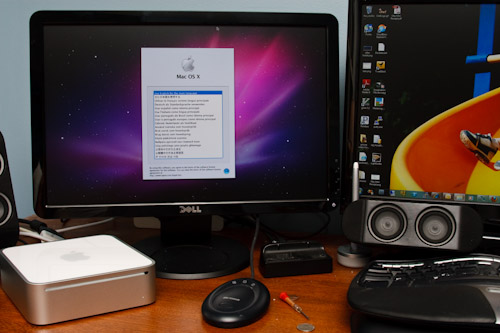
    I just fired up a Mac in the house.

    IMG_0369

    What is the the world coming to?

  • More PowerShell – a Cmdlet

    This past weekend I spent some time reading up on and writing my first PowerShell cmdlet.   The cmdlet is an easy one, but replaces a PS function I have copy/pasted into several scripts here and there to handle cleaning out directories of old backups or other types of files.  One scenario is my RadioShark which I have setup to make daily radio recordings.  The software doesn’t have any settings for how long to keep the files, so up until now I have just been manually deleting a couple dozen at a time every month or so. 

    Enter Remove-OldItems, named after the built-in Remove-Item.

    Full Syntax: Remove-OldItems c:temp -pattern *.mp3 -KeepDays 7 -Leave 2 -Confirm -WhatIf

    That will remove all mp3 files in c:temp which are older than 7 days.  The Leave parameter is for when I use it for dealing with backup files and is a safeguard so that even if all of the files fall out of the date range, they won’t all be deleted. 

    I have put together 32-bit and 64-bit installers, feel free to download them.  If you run it on a 64-bit system, the install will register with both the 32 and 64bit PowerShells. I can make the code available if anyone’s interested.

    After installing the .msi, you can confirm the new Snapin is on the system by running get-pssnapin -registered. You should see EjiSnapin listed.After Install

    Now the Snapin containing the cmdlet(s) is there, but not loaded into the current PowerShell session.  Since I’m going to be running this from a Scheduled Task, I don’t want to have to explicitly run Add-PSSnapin EjiSnapin every time I want to use it.  One quick way around this is to add that command to the system-wide PowerShell Profile located at $pshomeprofile.ps1.  That’s easy enough, in an elevated PS prompt, just run notepad $pshome/profile.ps1 and add a single line Add-PSSnapin EjiSnapin and save the file.  Now every PS session will have the cmdlet ready to go.

    Here’s the final result, a scheduled task with a simple command being run to clear out old files in my RadioShark directory.

    task

    Overall it was fairly easy, the most difficult part came with getting the installers to work correctly between 32 and 64-bit installations.  Future enhancements, if I come into a situation where I need it, may be to add processing from the pipeline so a collection of files to be deleted could be passed to the cmdlet instead of a directory path.  Might be useful, might not.

    Here’s C# for doing the actual deletions.

    
        DirectoryInfo rootDir = new DirectoryInfo(Path);
    
        // anything older than Today minus KeepDays may be deleted
        DateTime protectionDate = DateTime.UtcNow.AddDays(-KeepDays);
    
        List candidates = rootDir.GetFiles(string.IsNullOrEmpty(Pattern) ? "*.*" : Pattern, SearchOption.TopDirectoryOnly)
            .OrderBy(f => f.LastWriteTimeUtc).ToList();
    
        if (Leave > 0)
        {
            // pop the last Leave files off the end (the most recent)
            candidates.RemoveRange(candidates.Count - Leave, Leave);
        }
    
        // now only keep those that are old enough
        candidates.RemoveAll(f => f.LastWriteTimeUtc >= protectionDate);
    
        // cycle and delete
        candidates.ForEach(f =>
            {
                if (ShouldProcess(f.FullName, "delete"))
                {
                    try
                    {
                        f.Delete();
                    }
                    catch (UnauthorizedAccessException ex)
                    {
                        WriteWarning(String.Format("Unable to delete '{0}', UnauthorizedAccess", f.FullName));
    
                        // IOException can also occur, but I want that to be a termanating exception
                    }
    
                }
                else
                {
                        // Nothing to do, ShouldProcess provided any errors/warnings/etc.
                }
            });

    In the process of writing this I learned that PowerShell V2 allows you to script cmdlets.  So this could have been greatly simplified (mostly on the deployment side), but that wouldn’t have been nearly as interesting, right? 

    That’s all folks. Thanks for reading.