The Johnson Blog

Ramblings of a geek with a few hobbies…

Tag: Tech

  • Tracking down a Blue Screen of Death

    Since rebuilding my machine with a new motherboard and processor, I’ve gotten a few crashes in the middle of the night. I’ve come downstairs to a rebooted PC with an error message indicating the dreaded Blue Screen of Death has visited. So I decided to figure out what’s causing it, and maybe find a fix.

    When a bluescreen happens, Windows will take a snapshot of what is in memory at the time of the crash and store them for analyzing later.  “Mini” crash dumps are stored in c:windowsminidump and are trimmed down (for space reasons) versions of the full crash dumps.  There’s a great tool called Windows Debugger that can be used to take a peek into these dump files to decipher what may be causing the problem.

    First I downloaded the Windows Debugging Tools so that I could get the WinDbg (Windows Debugger). 

    After installing the tools, start up WinDbg and you’ll see a very plain looking interface that is essentially a console with tons of menu options/commands.

    windbg

    The next step is to open one of those crash dump files.  So go to File -> Open Crash Dump and select one of the .dmp files.  It’ll chug away for a few seconds as it opens, and then you’ll be presented with some messages that include:

    ***** Kernel symbols are WRONG. Please fix symbols to do analysis.

    Symbols are files that contain debugging information for your system files.  They are platform and version dependent – meaning symbol files for a 32-bit Windows XP machine won’t help figuring out a 64-bit Windows 7 problem as is the case here.  Luckily, WinDbg will download the appropriate versions of symbols  once you simply tell it where to get them and where to put them.  Select File -> Symbol File Path and enter the following into the window to save the symbols to a path on your C::

     SRV*c:debugsymbols*http://msdl.microsoft.com/download/symbols

    Check the Reload box before closing so that the symbols will be downloaded right away:

    symbols-path

     When you click OK, the status bar on the main console will read BUSY as the necessary symbols are downloaded.  Then the cursor will sit and blink, waiting for you to tell it what to do.

    Now just type in:

    !analyze -v

    and you’ll be presented with lots of very technical technical text.  In my case, I scanned through and saw a couple important bits of information:

    PAGE_FAULT_IN_NONPAGED_AREA (50)

    DEFAULT_BUCKET_ID:  VISTA_DRIVER_FAULT

    BUGCHECK_STR:  0x50

    PROCESS_NAME:  Robocopy.exe

    FAULTING_IP:
    nt!MmCopyToCachedPage+215

    IMAGE_NAME:  memory_corruption

    So it sounds like it’s a bad memory pointer resulting in a fun access violation, happening in a kernel function MmCopyToCachedPage.   And it doesn’t seem to have anything to do with power management, instead it was occurring during one of my nighly backups that uses Robocopy to pull files off of the network.

    Now, what to do about it?  I tossed MmCopyToCachedPage into Bing, and the very first hit was for someone running a similar processor on the exact same motherboard. (For the record, Google’s search results didn’t appear to be nearly as useful).  Reading through the thread, a mentioned fix was to change a BIOS setting to accomodate the processor better (CPU Margin Enhancement, whatever the heck that is).   Tonight we’ll see if this has any impact on the system crash, I’ll be crossing my fingers.

    So there you have it, using WinDbg to get a look into what part of your machine is blowing up.  Thanks for reading.

  • When it Rains, it Pours

    It started with no video output, and ended with a non-booting computer with an unreadable external hard drive and potentially unusable RAID array.   Yeah that’s not good.

    Yesterday evening my monitors went blank.  An hour of troubleshooting left me with the determination that my “good” video card had failed.  I removed it and was able to boot into Vista using the lesser of the video cards. I started the RMA process and figured that was the end of it. 

    HA!  Today I was remoted in and noticed I couldn’t access the external USB hard drive (Western Digital MyBook).  The eventlog was showing NTFS errors saying it was corrupt and needed to be scanned, but I couldn’t do anything with the drive; so I rebooted.  And it never came back up! 

    All signs indicate the motherboard is toast.

    The external drive has all of my videos on it (raw footage and edits), and that is copied nightly to the mirrored RAID array where the first copies of photos live. No biggie, right?  Well I had a little scare when I started reading about moving RAID arrays to new machines – as in, most of the time you have to have the same brand (or compatible) RAID controller or you’re screwed.  I’m using the onboard nvidia NVRaid on a board that is no longer sold, and couldn’t quite find documentation on compatibility between versions.

    So, I pulled one of my mirrored drives out and put into my SATA dock attached to my laptop. Big relief –  all of the data is readable as a standalone drive!  Wooo!

    Now back to the external MyBook – I plugged it into my Windows 7 laptop and was promptly asked if I wanted to fix it.  30 seconds later, the filesystem was checked/fixed and my data was available.  Wooo Wooo!

    If my RAID array would have been unusable, I have backups of the important stuff across my network and across town.  But I definitely didn’t count on my external drive AND the array being down at the same time, so that freaked me out a little bit and I’m thankful that the drives are all fine.   Thinking about it more, I probably would have ended up paying a pretty penny for the out-of-production motherboard or some of the RAID recovery packages out there.

    Anyway, when I get my desktop rebuilt I’m going to have to find room for another copy of 100GB of video somewhere.

    And finally, the hardware I ordered tonight is as follows:

    • Intel Core 2 Quad Q9400
    • ASUS P5Q motherboard
    • 4 more GB of RAM
    • NVidia 9800GT

    You know what they say, a file doesn’t exist unless there are at least 3 copies of it.

  • VMWare Server 2 and Windows 2003

    A couple times now in the past several months I’ve needed to install or upgrade VMWare Server 2 running on Windows 2003 and ran into a problem that takes a little while to re-discover the solution for.  This is for future reference and to help others that may hit this in the future.

    The problem is that after installing or upgrading VMWare Server 2, my host machine will no longer be able to be reached across the network.  It can communicate (ping, etc) out, but not the other way around.  Hosted virtual machines also have full connectivity, and they can receive communications from the networks.  It’s very strange, but the solution has been to Disable Routing and Remote Access, reboot, and re-enabled it.

    Once that’s done, everything is normal.  Fun Stuff.

  • FogBugz on Windows Small Business Server 2008

    I recently installed FogBugz 6 on 64-bit Windows Small Business Server 2008, and boy was it interesting.  I’ll first note that I’ve had excellent installations and upgrades of FogBugz in the past, so this really caught me off guard and took a while to figure out what was going wrong.

    Second, after finding out what the problems were, it’s clear that this applies to far more than just FogBugz.  It all boils down to 32-bit web apps running on the 64 bit platform, and the fact that it’s Small Business Server which has TONS of software preconfigured and running on it.

    The first problem I ran into was the app-pool crashing with an error in the event log saying:

    The Module DLL C:Windowssystem32RpcProxyRpcProxy.dll failed to load. 

    Some googling around resulted in learning that RPC over HTTP (a feature used by Outlook Anywhere in Exchange, which is a big part of SBS) is known to break 32-bit worker processes.  One quick solution is to just uninstall the RPC over HTTP Windows feature, and that’s what I did just for speed.

    The other fix is to edit applicationhost.config and add preCondition=”bitness64″ for the rpcproxy.dll modules and globalModules entries.  I’ll probably go back and make this change since I’m going to want to use RPC over HTTP.

    Anway, I kept getting HTP 500 (500.19 this time) errors when loading the app.  Further investigation revealed that Windows Server Update Services (WSUS), also packaged in Small Business Server, installs a compression module in IIS 7 that, you guessed it, breaks 32 bit app pools.    From the IIS forums, to disable the compression scheme:

    %windir%system32inetsrvappcmd.exe set config -section:system.webServer/httpCompression /-[name=’xpress’]

    And, to re-enable if you need:

    %windir%system32inetsrvappcmd.exe set config -section:system.webServer/httpCompression /+[name=’xpress’,doStaticCompression=’false’,dll=’%windir%system32inetsrvsuscomp.dll’]

    And there you have it, after doing those things you can run 32 bit app pools.  As a side-note, I recall that disabling FogBugz’s custom error page was a tremendous help in seeing what was really going on. 

    I have very mixed feelings about Small Business Server.  On one hand, there’s so much software configured and running and they all are configured just so to allow them to work.  What’s worse, you really can’t/shouldn’t fight the topology and layout of things that are in place.  If you do, things break and break in very bad ways.  And since there’s so much software installed already, it’s hard to know the side effects of everything.  But on the other hand, it’s thousands and thousands of dollars of software for a fraction of the price.

    Aaand finally, if you’re buying a Small Business Server, be sure to get more than 4GB of RAM.  You’ll need it.

  • iTunes is iAnnoying

    Too bad the iPhone makes you get sucked into the world if iTunes – because it sucks.  I knew this going in, but it still isn’t fun when the limitations smack you in the face.

    The limitation of which I speak is its inability to detect new files in its directories, automatically update its library database, and make it available for syncing and playing.  I spent a while fumbling around the UI looking for the option to turn it on, only to be ultimately disappointed by a few google searches. 

    My initial plan was to take home movie clips (btw, MediaCoder is pretty handy..) and drop them into a directory managed by iTunes so they’d automatically get sent to the phone, but now I was going to have to add additional steps of manually adding the new videos each time they get created.  That’s just too much work and I’m too lazy.

    I ran across an app or two that would do this updating for you, but instead decided to go a different route – creating a podcast that iTunes would auto-update and sync to the phone.  Tuesday night I whipped up an ASP.NET request handler (IHttpHandler) to generate feeds based on directory contents.  So now I’ve got the auto-updating capability I was initially looking for: after I create the video, I just drop it into a directory accessible by my webserver and iTunes will pick it up the next time it requests the feed.  As an added bonus, David now has a podcast for family and friends 🙂

    Some more details on the code below the break.

    (more…)

  • Ammo and… backups?

    OK, just a few more words about my data backups.

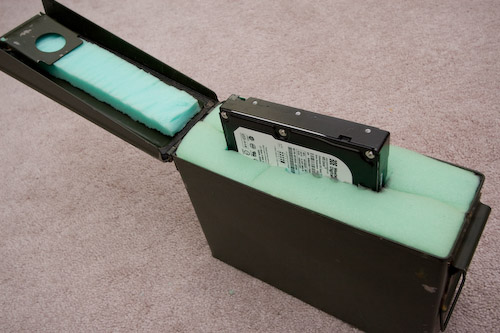
    Last week I ordered a few Army Surplus, 30 Caliber Ammo Cans, they arrived today.  What the heck are these for, you ask?

    Well I thought they could make a great way to transport and store the hard drives I’m going to be rotating off-site.  So tonight I got to work with a knife and some dense foam, to create what should be a pretty sturdy (and water-resistant!) hard drive case.

    And here it is, with a spare drive not quite halfway pushed in.  The foam cutting was crude, and it may not be pretty, but I like it.

    The cans are $4 apiece + shipping.

  • iPhone

    My 2.5 year-long haitus from being connected on-the-go is over.  I finally took the plunge and switched from Sprint to AT&T and bought an iPhone (8GB).  Sprint has provided great service over the past 5+ years, but their phone selection has been lacking.  Sorry, Sprint, the HTC Touch Pro and/or Diamond just don’t compare.

  • Backups and my first foray into PowerShell

    First, some background.

    Last week I received the final pieces of my backup strategy, a pair of 500 GB hard drives that I will be rotating periodically to some undisclosed location that isn’t my house.  Right now, my fileserver makes backups and sticks them on a mirrored RAID array.  These drives are simply to hold extra copies of these backup files in the event of something Very Bad(tm) happening to our house.

    Since it will be leaving my house, I decided I wanted to make sure the data was wrapped up in a nice blanket of encryption goodness.  For ease of use, I have an eSATA docking station that allows the drives to be ‘hot-swapped’ – and for further convenience I’m attaching it to my desktop instead of the server so that it will be harder to forget to rotate the drives out (in the basement = out of sight, out of mind).

    So all of this presented an opportunity to learn the relatively-new command line environment, Microsoft PowerShell

    The scripts (feel free to download) do the following:

    1. Mount my hard drives as encrypted TrueCrypt volumes, using a keyfile.  Now anything written to the drives are wrapped in that nice encryption blanket I mentioned earlier.  Mmm… scrambled bits and blankets.
    2. Checks the amount of space available in the target directory and deletes the necessary number of old backups to make sufficient room for the new backup copies.
    3. Calls on RoboCopy (included in Windows Vista) to do the actual file copying.  Note that in my testing, I found RoboCopy to be 3-4 times as fast as xcopy across the network.
    4. Sends off a completion email
    5. Dismounts the encrypted volume

    Since this was my first use of PowerShell, I’m sure there is a lot of room for improvement and that I’ve only just scratched the surface.  That said, I learned enough about PowerShell that I’m going to keep pushing to learn more.

    A few things I like:

    • It was very easy to use several diffferent MS technologies from the one script.  I seemlessly use .NET objects, COM objects, and even pull in some WMI interaction to get the job done.
    • Finally having regular expressions available as first-class citizens in scripts – a.la perl and others.  No absolute need to explicitly fire up the .NET regex classes all the time, even though that’s definitely possible and useful too.
    • Finally not having to rely on essentially screen-scraping command outputs. Yay for objects!
    • Writing custom cmdlets in C# is pretty straightforward.  I started down this route to make my own Start-Backup cmdlet, but decided against it since I specifically wanted to learn PS scripting and not just write the solution in C#.

    A few things I dislike:

    • using -lt and -gt (and similar) instead of “<” and “>” for comparisons and equality.  It just feels wrong.
    • Lack of an official language reference – I couldn’t believe one wasn’t available, and this left me in the dark and learning by trial by error on some key behaviors of powershell (like function return values, for instance).  The “documentation pack” has a crappy quick-reference/cheat-sheet sort of thing, but not a real spec.
    • How hard it was to track down the PowerShell SDK – note: you have to download the Windows SDK and blindly choose a few installation options to get the SDK installed.
    • I made the PowerShell crash a few times.  That shouldn’t be able to happen.
  • Heights and XM Radio

    A couple of months ago I purchased a Terk XM6 XM Radio Antenna because the reception I have been getting in the office has been poor and unpredictable.   Due to some procrastination, the new antenna has been sitting in its packaging waiting to be installed ever since.

    Until today.  This morning I decided it was time to get back up on the 2nd storey roof of my house and replace the now-inactive Wifi antenna with XM.  I’m not a fan of being that high up, particularly on a cold and windy day.  In fact, as I climbed up the ladder and took a look at my target, I came very close to saying screw-it and just mounting the antenna on the side of the house.

    Not to be easily defeated – I pushed ahead and swapped the antennas.  I had to run new cable (RG6 Quad Shield) instead of using the existing, superior cable (LMR400) so that I could get the appropriate connectors attached.  Due to how securely Jay put that other cable up, and how cold it was, I decided I’ll make another trip back up in warmer weather to pull it down 🙂

    So now my office has an XM jack, 100%  (versus maybe 20%, according to the receiver) signal reception, and won’t cut in and out when someone walks through the room!   The project isn’t completely done, however;  I need to order a 2.4Ghz splitter so I can feed the signal to the basement and possibly another room in the house in the future.

  • Favorite Software?

    Leaving development tools aside (ahem, Visual Studio, ahem), what are your favorite software titles?  You know, the ones you use daily, are truly useful, you couldn’t live without, and are just plain fun.  Here are mine, in no particular order:

    1. Microsoft OneNote 2007 – This is such a little known piece of software, but one that organizes almost everything I do throughout the day.  I’ve taken a few recommendations from some sites here and there and implemented my own Getting Things Done (great book too) system using OneNote.  If you find yourself scribbling down things on paper or typing things up in random text files that are strewn all over the place, you should give OneNote a try.

      I’ve got two notebooks setup, one for work and one for everything else.  They both have pretty much the same structure/sections: Today; Current Month; Active Projects; and Archive.  Each of those contains pages with information tagged with customized OneNote tags (Processing, Project, Follow-up, etc).

    2. Adobe Photoshop Lightroom 2I’ve mentioned it here before, I know, but it’s great software that takes care of all things photos.
    3. TrillianI’ve been using this multi-service chat client for many years now.  It works and is always running on my machine.
    4. TrueCryptTransparent and on-the-fly encryption.  What’s not to love.  I use it in conjunction with the next entry.
    5. KeePass – A couple months ago I got sick and tired of resetting my passwords on a slew of online sites.  So I found this great utility.  I’ve always avoided using password keepers in the past, but finally gave in.  It takes security serious, and I store its data file in a TrueCrypt volume.
    6. Snaptune One – They appear to be out of business now, but I use it to record AM/FM radio with my RadioShark on Vista, since the original software doesn’t work on Vista.
    7. Windows Media Encoder – I don’t use this nearly as much as I used to, but recently got it back up and running.  I use it in combination with Windows Media Server to stream XM Radio and the RadioShark, so on the rare occasions I’m not here at my desk, I can still have audio choices.
    8. ISO Recorder – I make images of the mini-dvds from my camcorder.

    Anyone care to share their favorites?