The Johnson Blog

Ramblings of a geek with a few hobbies…

Category: General

  • San Francisco Vacation: Day 3

    We got to sleep in a bit longer today – 5:30am!

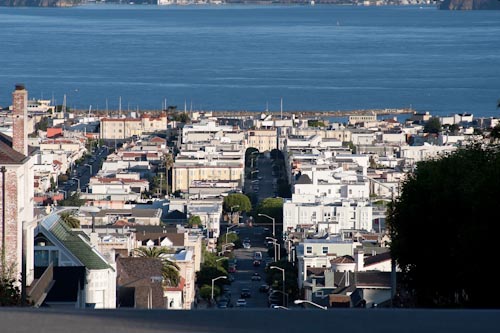
    After getting David some breakfast, we took a short walk down the block to get some coffee.   Here’s the view from a block from where we’re staying.

    IMG_2169

    After grabbing coffee it was only 8am, and most of the tourist spots weren’t close to being open yet.  We decided to drive over to the Golden Gate Bridge.  I missed an exit so we drover over (and back) when we hadn’t planned to, but that just gave us more time to admire the bridge and take photos.  Back on the south side we decided to take a walk on it:

    IMG_2289

    By this point it was time for lunch and a nap (ooooh vacations are nice) so we went back to the house.  A couple hours later we went on a cable car ride downtown, walked around for a while, had dinner, and ended the day with another cable car ride back.

    IMG_2367

    IMG_2371

    Tomorrow we go on a train ride through a forest and who knows what else.

  • San Francisco Vacation: Day 2

    This being the first day here, David woke up at his normal Central time which translated to 4:30am.  And he was ready to go, letting us know with “I’m Done!”.

    So we got up, made breakfast, and headed out to the park that’s on the next block.  It doesn’t look like much from the street but they have a great playground area for kids, complete with a textile-rubber-whatever flooring that feels like you’re walking on a brownie.  At least, how I’d imagine walking on a brownie would feel like.

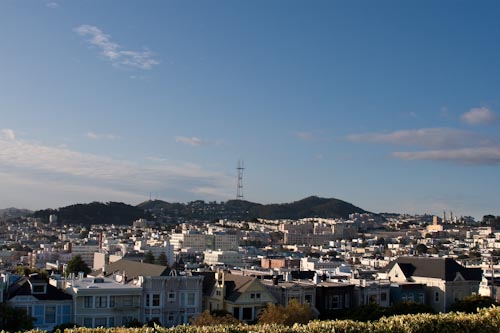
    This is the view from the playground:

    IMG_1890-2

    And of David enjoying the bright San Francisco morning sun:

    IMG_1916

    Next up was some more grocery shopping and then lunch and a quick nap for David.  After that we headed down to Fisherman’s Wharf and Pier 39 for the afternoon. 

    IMG_2093

    David spent the entire carousel ride finishing off a Mrs. Fields cookie!

    Pier 39 had lots of smelly Sea Lions.

    IMG_1972

    Now to find some dinner!

  • San Francisco Vacation: Day 1

    Since I was already out in San Francisco for the Business of Software conference, Ana and David were flying in on Wednesday.  This was David’s first time on an airplane so we weren’t too sure how he’d react.  Everything went fine,  he enjoyed himself, and Ana didn’t lose her sanity – bonus!

    It took a while to get out of the rental car center at the airport but it didn’t take too long to get to the apartment we rented.  Ana found the place on HomeAway and it is beautiful.

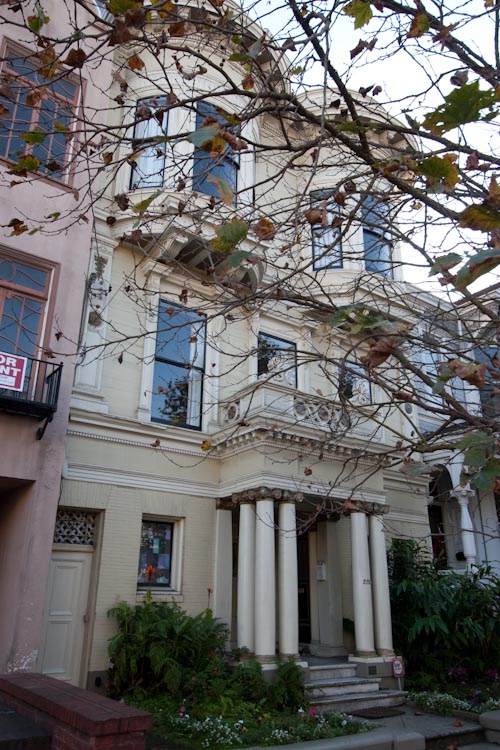
    IMG_1855-2

    It’s over 100 years old (probably closer to 130 I think) and is very comfortable.

    Our door is actually the small one on the left in the picture which leads you down a long and kind of creepy breezeway, with the entrace to the apartment on the back of the house.  It’s 2 bedrooms with a kitchen and living room so it has been so much better than just getting a hotel.  

    We ended up not doing too much that day other than running to a local grocery store to get some supplies.   After a quick dinner, he fell asleep immediately.

  • So this Google Wave thing

    If you’re one of my few twitter followers, you’ve probably seen a tweet or two about me poking around with Google Wave  here and there. Like everyone else, I was very unsure at first of it’s form and function.  But now that I’ve had some time to tinker and have just let it steep in my brain, some very interesting uses keep popping into my head.  I’m starting to envision great ways to use this tool but I’m not so sure it’s in-line with what everyone else has in mind.

    Oh, where to begin.

    The tagline for Google Wave is

    an online tool for real-time communication and collaboration

    You cannot argue that there is an enormous real-time aspect to wave.   It’s in your face from the beginning with see-as-they-type functionality seen in ICQ back in the day.  The current interface Google has placed atop the Wave protocol resembles a threaded discussion forum (albeit much harder to read), the big difference being that it’s alive.  If you watch a public wave with a couple dozen people or more it’s almost scary to watch the conversation evolve and grow in front of your eyes.  Dizzying for sure.  This behavior clearly brings instant messaging to mind, so it’s very easy to see how it could replace that mode of communication.

    I happen to believe that while it will be valuable as a real-time collaboration tool, it may be even more valuable as a good disconnected collaboration platform.   Think email, but where Sent and Received messages are replaced with a single wave representing the entire conversation.  Documents?  Screenshots? Notes?  It’s all in the wave, the single container for both parties’ thoughts and assets.   5 months later when something new develops, or changes, or needs a followup, we don’t need to Forward an old email with hopes that they’ll remember the conversation.  Rather a new item will simply be added to the wave and it’ll be brought to their attention.  When you think of it like that, I think it makes much more sense.  Natural even. It reduces the useless clutter that email produces.

    It makes the time differential between posted items irrelevant.  Time shifting for your conversations, if you will.   Nothing new to discuss on this topic at the moment?   Sure, I’ll just pause this conversation and resume it when the need arises.

    For the other software developers out there, I can picture a peer code reviewing application sitting atop Wave.  You begin with the source file and a conversation or roundtable can evolve around that code. As code is commited to your repository, this wave gets updated with the new code.  Toss in a diagram if that helps explain a topic, link to other code waves for reference, attach performance results, etc, etc.. Every piece of information and data relating to that code in one place that fascilitates sharing and information flow.

    Am I off base?  What do you think of Wave’s capabilities?

  • A Visit to Pere Marquette State Park

    Today we received a reprieve from the rain that has been soaking the area, so we decided we were going to make the most of the blue skies and take in some of Illinois’ fall colors.  After much debate, we settled on going to Pere Marquette State Park by way of Alton, IL so we could purchase a couple cool mugs first.

    The day started with us meeting up with my Aunt Jan in Alton so she could show us around Mississippi Mud (she is friends with the owners, and a faithful patron),  followed by a tasty pizza lunch before making our way up to Grafton via the Great River Road.  The drive was very scenic, with golden trees lining the road.  Combine that with the deep blue sky and you just couldn’t have asked for a better day.

    Once in the park, we spent quite some time driving the Scenic Drive, stopping to take in the great views and let David run around.

    IMG_1256

    At one of the stops we came upon what may be the brightest, most vivid tree in the park.  It was just soaking up the sun and the colors almost didn’t look real.


    IMG_1264

    After the drive, we got out and went on David’s first Hike.  We decided to take a short one (.5 miles), but it was labelled moderate difficulty – something that didn’t slow David down much at all.  His little legs finally gave out just past the 1/4 mile mark, but he did all the uphill by himself!  Here he is approaching a set of steps.

    IMG_1296

    One thing we noticed, and was a little bit of a letdown, was that there wasn’t a whole lot of color.  There were plenty of yellow and orange, but not the deep reds that we have around here.


    Great day, lots of fun.  More photos in the gallery.

  • Pumpkin Picking

    We’ve been trying to make it out to Broom Orchard for a few weekends in a row now, but finally made it today.  David had a great time pointing out all of the pumpkins, going on a hayride, and being a “pumpkin bully” (Ana’s words) by rolling them all over the place.

    IMG_0846

    IMG_0944

    IMG_0913

    More photos in the gallery.

  • Mark it Down on your Calendars

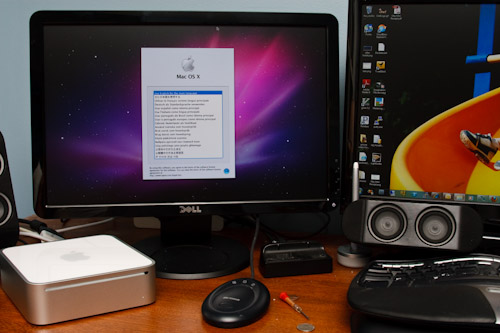
    I just fired up a Mac in the house.

    IMG_0369

    What is the the world coming to?

  • Swimming

    David enjoying his swimming class at the YMCA.

    IMG_0251

    More photos in the gallery.

  • More PowerShell – a Cmdlet

    This past weekend I spent some time reading up on and writing my first PowerShell cmdlet.   The cmdlet is an easy one, but replaces a PS function I have copy/pasted into several scripts here and there to handle cleaning out directories of old backups or other types of files.  One scenario is my RadioShark which I have setup to make daily radio recordings.  The software doesn’t have any settings for how long to keep the files, so up until now I have just been manually deleting a couple dozen at a time every month or so. 

    Enter Remove-OldItems, named after the built-in Remove-Item.

    Full Syntax: Remove-OldItems c:temp -pattern *.mp3 -KeepDays 7 -Leave 2 -Confirm -WhatIf

    That will remove all mp3 files in c:temp which are older than 7 days.  The Leave parameter is for when I use it for dealing with backup files and is a safeguard so that even if all of the files fall out of the date range, they won’t all be deleted. 

    I have put together 32-bit and 64-bit installers, feel free to download them.  If you run it on a 64-bit system, the install will register with both the 32 and 64bit PowerShells. I can make the code available if anyone’s interested.

    After installing the .msi, you can confirm the new Snapin is on the system by running get-pssnapin -registered. You should see EjiSnapin listed.After Install

    Now the Snapin containing the cmdlet(s) is there, but not loaded into the current PowerShell session.  Since I’m going to be running this from a Scheduled Task, I don’t want to have to explicitly run Add-PSSnapin EjiSnapin every time I want to use it.  One quick way around this is to add that command to the system-wide PowerShell Profile located at $pshomeprofile.ps1.  That’s easy enough, in an elevated PS prompt, just run notepad $pshome/profile.ps1 and add a single line Add-PSSnapin EjiSnapin and save the file.  Now every PS session will have the cmdlet ready to go.

    Here’s the final result, a scheduled task with a simple command being run to clear out old files in my RadioShark directory.

    task

    Overall it was fairly easy, the most difficult part came with getting the installers to work correctly between 32 and 64-bit installations.  Future enhancements, if I come into a situation where I need it, may be to add processing from the pipeline so a collection of files to be deleted could be passed to the cmdlet instead of a directory path.  Might be useful, might not.

    Here’s C# for doing the actual deletions.

    
        DirectoryInfo rootDir = new DirectoryInfo(Path);
    
        // anything older than Today minus KeepDays may be deleted
        DateTime protectionDate = DateTime.UtcNow.AddDays(-KeepDays);
    
        List candidates = rootDir.GetFiles(string.IsNullOrEmpty(Pattern) ? "*.*" : Pattern, SearchOption.TopDirectoryOnly)
            .OrderBy(f => f.LastWriteTimeUtc).ToList();
    
        if (Leave > 0)
        {
            // pop the last Leave files off the end (the most recent)
            candidates.RemoveRange(candidates.Count - Leave, Leave);
        }
    
        // now only keep those that are old enough
        candidates.RemoveAll(f => f.LastWriteTimeUtc >= protectionDate);
    
        // cycle and delete
        candidates.ForEach(f =>
            {
                if (ShouldProcess(f.FullName, "delete"))
                {
                    try
                    {
                        f.Delete();
                    }
                    catch (UnauthorizedAccessException ex)
                    {
                        WriteWarning(String.Format("Unable to delete '{0}', UnauthorizedAccess", f.FullName));
    
                        // IOException can also occur, but I want that to be a termanating exception
                    }
    
                }
                else
                {
                        // Nothing to do, ShouldProcess provided any errors/warnings/etc.
                }
            });

    In the process of writing this I learned that PowerShell V2 allows you to script cmdlets.  So this could have been greatly simplified (mostly on the deployment side), but that wouldn’t have been nearly as interesting, right? 

    That’s all folks. Thanks for reading.